Tutorials

Get the most out of EPGMaster

Short, practical walkthroughs. Each one has a video and a written version — whichever you prefer.

~2 min

Import a playlist in 60 seconds

The fastest way to get from "I have IPTV credentials" to "my player is showing a real EPG". Xtream Codes path — no file uploads, no TVG-IDs.
Video coming soon

The written walkthrough below covers every step. The video version is being recorded.

Written walkthrough

This is the recommended setup path for any provider that gives you Xtream Codes credentials — which is most of them. Total time: about a minute, including waiting for matching to finish.

What you’ll need

  • Your IPTV provider’s portal URL (e.g. http://provider.example:8080).
  • Your Xtream Codes username and password.
  • An EPGMaster.ai account — start a free 14-day trial if you don’t have one.

If your provider only gives you an M3U file, see the Importing from an M3U file tutorial (coming soon).

Step 1 — Open the import wizard

From the dashboard, click Add Source. Choose Xtream Codes. You’ll see three fields: portal URL, username, password.

Paste them in. The portal URL is the same one your IPTV app uses — usually something like http://provider.example:8080 or https://line.example.tv.

Step 2 — Let it pull the lineup

Click Connect. EPGMaster talks to your provider’s Xtream API directly — we pull the live channel list, the VOD library, and the TV series tree in one go. This usually takes 5–15 seconds depending on how many channels your provider exposes.

You’ll see a progress bar. Behind the scenes we’re running:

  • get_live_categories — channel groups
  • get_live_streams — every live channel
  • get_vod_categories + get_vod_streams — movies
  • get_series — TV series

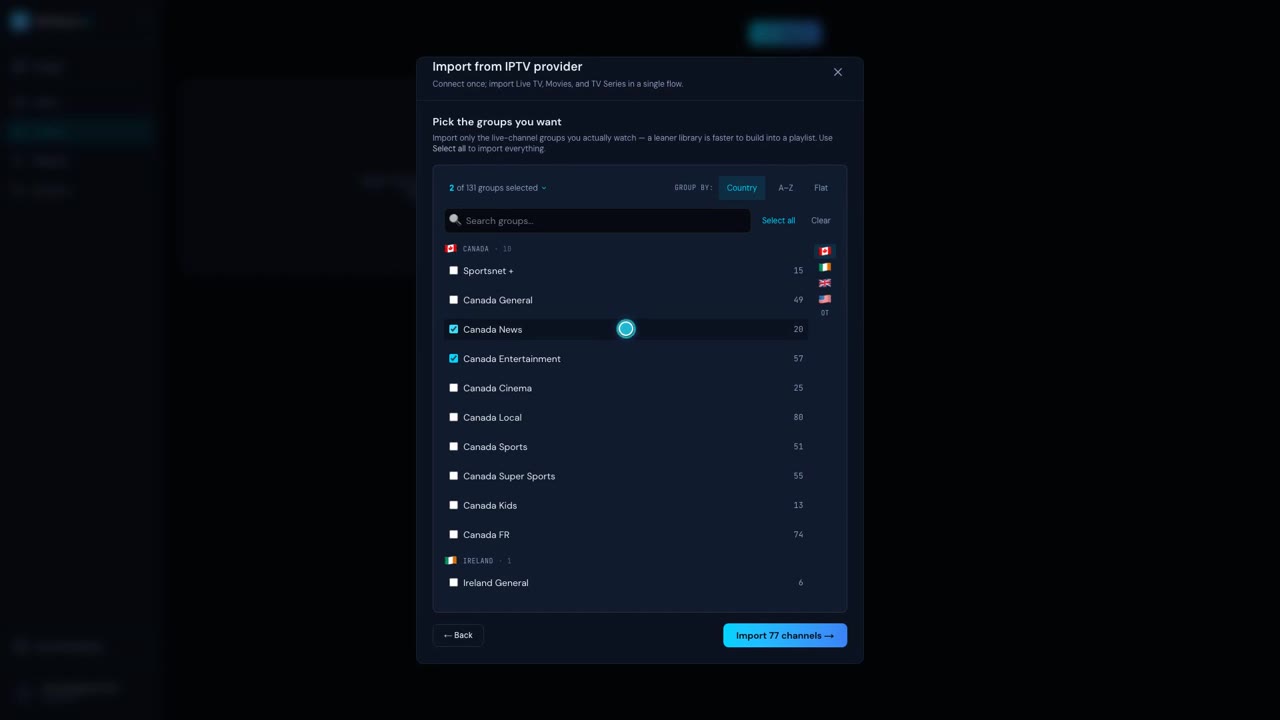
Step 3 — Pick the categories you want

Most providers ship 50–200 categories. The wizard shows them grouped by type with live channel counts. You can:

  • Tick whole categories to import everything inside them.
  • Drill into a category to pick individual channels.
  • Use the search to find specific channels by name.

If you want everything, hit Select all. You can always edit it later in the playlist editor.

Step 4 — AI matches the channels to EPG

Click Import. EPGMaster runs the imported channels through our matching engine — fuzzy similarity, country bias, region suffix handling, alias engine. You get a progress bar showing live matches.

Typical results on a 2,000-channel playlist: 90–97% match automatically in under a minute. The unmatched handful land in the Unmatchedtab where you can either leave them (they’ll still play, just without programme data) or fix them with the bulk-match tools.

Step 5 — Copy your feed URLs into your player

Once matching finishes, your playlist has a feed URL. From the dashboard, click your playlist — you’ll see two buttons:

  • Copy M3U URL— paste into TiviMate, Kodi, IPTV Smarters, anything that takes an M3U.
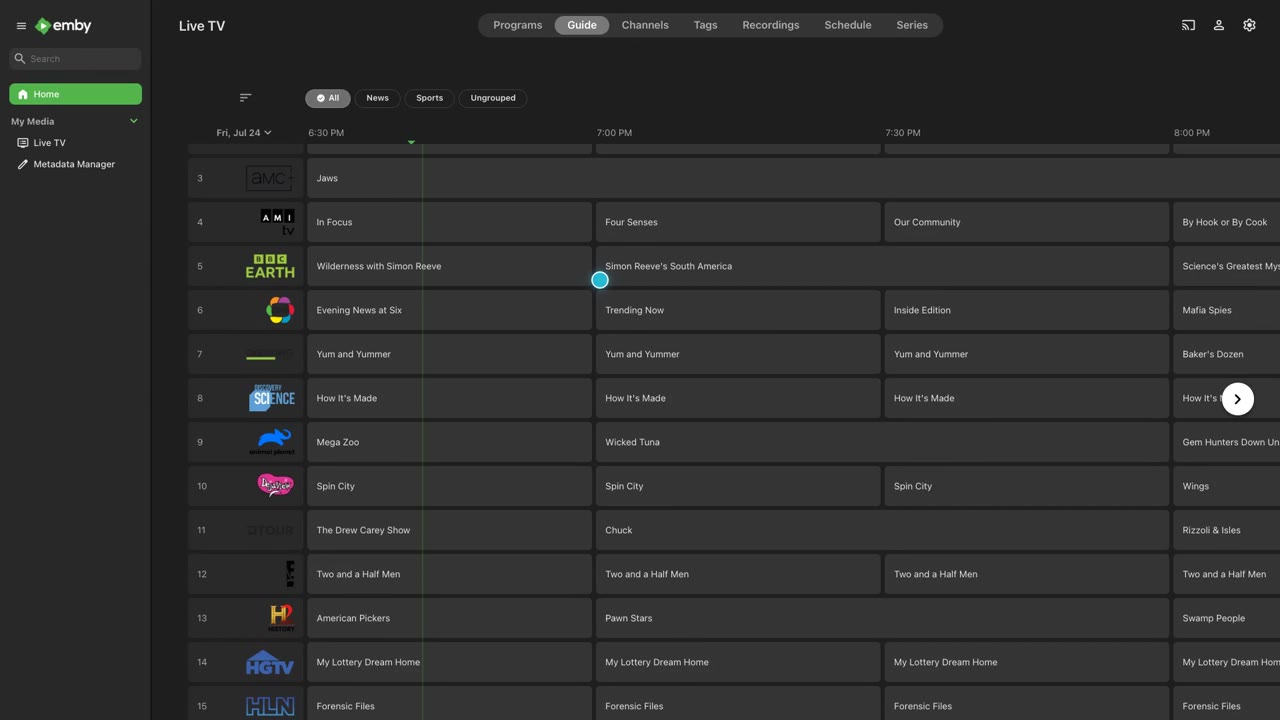
  • Copy XMLTV URL— paste into the same player as the EPG source. (TiviMate calls this “Programme” or “EPG”.)

Or, if your player supports Xtream Codes credentials directly (TiviMate does, IPTV Smarters Pro does), use the Connect with Xtream option from the same dashboard. One login, both feeds.

That’s it

You now have a clean, matched playlist serving fresh EPG data to your player. When your provider updates their lineup, hit Re-syncfrom the playlist menu and we’ll pull the changes — no re-uploading anything.

Next: try the playlist editor to clean up the channel names and reorder things the way you want them. (See the Editing a messy playlisttutorial — coming soon.)

More tutorials coming soon

We’re recording these next. Want one we haven’t listed? Start your free trial and ask through the in-app feedback button.

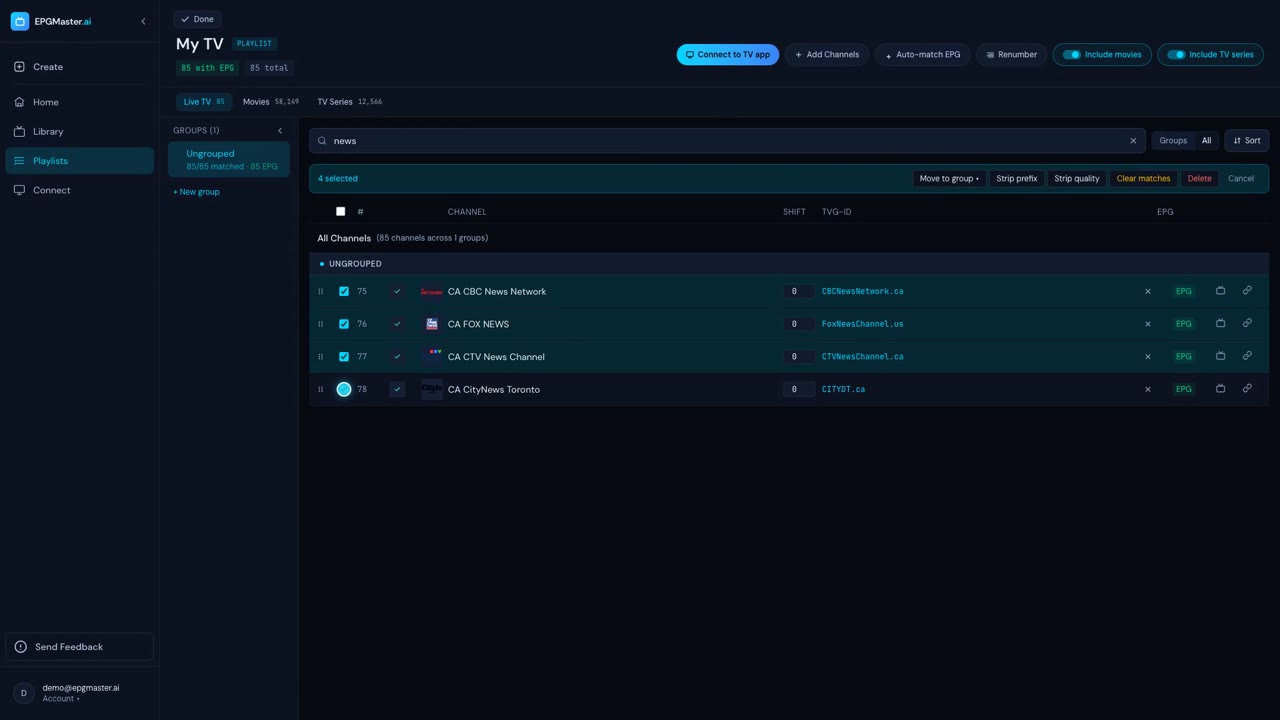
  • Editing a messy playlist

    Bulk rename, custom groups, hide channels, reorder. Turn 3,000 channels into 200 the way you want them.

  • One-login player setup with Xtream Codes

    Configure TiviMate, IPTV Smarters Pro, or any Xtream-compatible player with a single login.

  • Importing a really big playlist (250MB+)

    Provider gives you a giant M3U file? Here’s how the async pipeline handles it.

  • Browsing your VOD library

    Movies, TV series, TMDB metadata. The library views your provider didn’t bother building.